04
Image Upload and Analysis Representation
This module provides an overview of the image upload process following mission execution. It outlines the procedures for various distribution systems and highlights common challenges associated with image uploads.
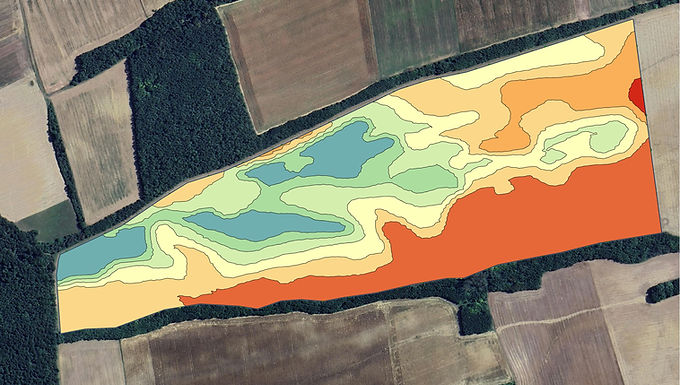
In the second part, the module presents methods for effectively communicating the analysis to farmers and explores practical applications such as soil sampling, drainage planning, and irrigation system development. These applications extend beyond the basic legal requirements for slope management, offering additional value and insight.
File Upload Process
Remove the SD Card from the Drone:
Carefully take the SD card out of the drone after completing the mission.Download Flight Files to Your Computer:
Copy the files from the SD card to a temporary folder on your computer.
Tip: Create a dedicated folder such asDownloads\Images\to keep files organized.Ensure Complete Download:
If the mission has grouped images into multiple folders, make sure to download all folders from the SD card.Access the Image Sharing Platform:
Visit your designated SharePoint link for image sharing.Organize and Upload Files:
In the precreated missin folder at the Images document library on dronedb.myields.com,
Upload the relevant files or folders. - refer for MissionTracking video.Retain Local Copies Until Processing is Confirmed:
Do not delete the files from your computer until you receive confirmation that the image processing is
Analysed Data Demonstration
How to Install QGIS on Mac and PC
For Windows (PC)
Go to the official QGIS website:
👉 https://qgis.org/en/site/forusers/download.htmlUnder Windows, click Download QGIS Standalone Installer (choose the Long Term Version).
Once downloaded, run the installer (.exe file) and follow the on-screen instructions.
After installation, open QGIS Desktop from your Start Menu.
For Mac (MacOS)
Visit:
👉 https://qgis.org/en/site/forusers/download.htmlUnder macOS, click to Download QGIS for Mac (.dmg file).
Open the .dmg file and drag the QGIS icon into your Applications folder.
Launch QGIS from Applications.
Minimum Requirements:
Windows 10/11 or macOS 10.15 or higher
At least 4 GB RAM (8 GB recommended)